💡 Tips & How-To · 使用技巧
Tap any topic below to expand it, or use 📑 to jump straight to one. 點擊下方主題即可展開,或按 📑 直接跳到指定主題。
No matching tips · 找不到符合的技巧
🚀 Getting Started · 快速入門
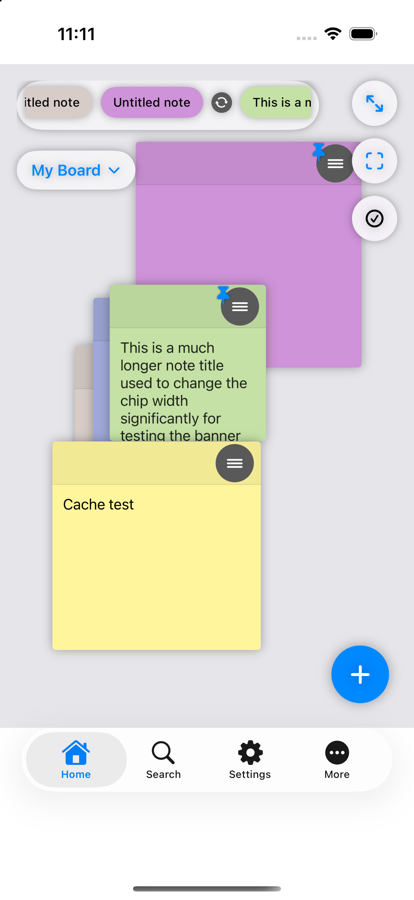
Tap the blue + button to create a new sticky note anywhere on your board. Drag a note to move it, pinch a note to resize it, and pinch the whole canvas to zoom in or out.
點擊藍色「+」按鈕即可在畫布上新增便條。拖曳便條可移動位置,雙指縮放便條可調整大小,縮放整個畫布則可放大縮小視角。
小提示:全新安裝會有範例「歡迎使用 Tackboard」看板與幾則簡短提示。開啟「更多」→「歡迎看板」可把看板找回來,或點「再次顯示提示」重看提示。在任何便條上按住不動半秒,即可用唯讀檢視快速預覽。
小提示:搜尋也會比對便條上連結預覽的標題與網址,而不只是您輸入的文字。
🗂️ Boards & Tags · 看板與標籤
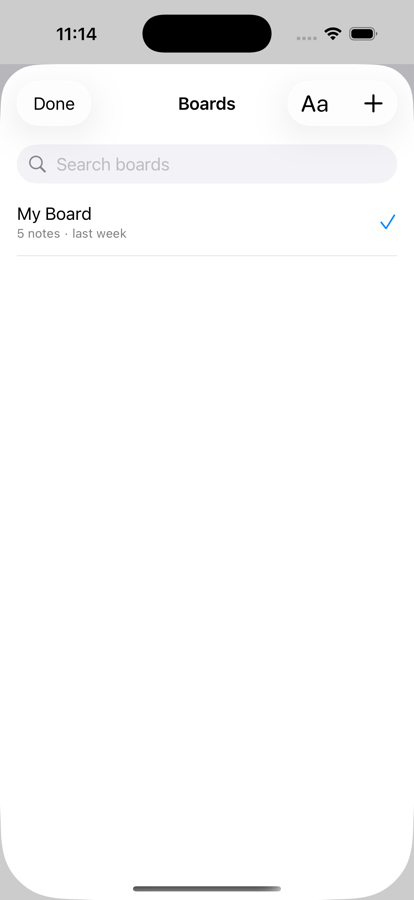
Group related notes into separate Boards (e.g. "Work," "Home," "Trip Planning") using the board picker at the top of the canvas. Add Tags to any note for cross-board organization — filter Search by tag to find everything related to a topic, no matter which board it's on.
使用畫布上方的看板選單,將相關便條分組到不同看板(例如「工作」「家庭」「旅行規劃」)。也可以為任何便條加上標籤,方便跨看板整理——在搜尋中依標籤篩選,即可找到某個主題的所有便條,不受看板限制。
小提示:看板名稱不可重複(大小寫視為相同)。複製便條(或使用「複製到其他看板」)時,也會連同附件與語音備忘一併複製。
小提示:在看板清單中將看板向右滑動(Mac 上按右鍵),選擇「複製」即可複製整個看板——所有便條連同附件與語音備忘——名稱為「名稱 副本」。每個看板也會顯示大小,以及所含的鬧鐘、語音備忘與附件數量(大小會在清單開啟後稍待片刻才顯示)。刪除您目前所在的看板後,Tackboard 會帶您回到先前使用的看板。
🔍 Search · 搜尋
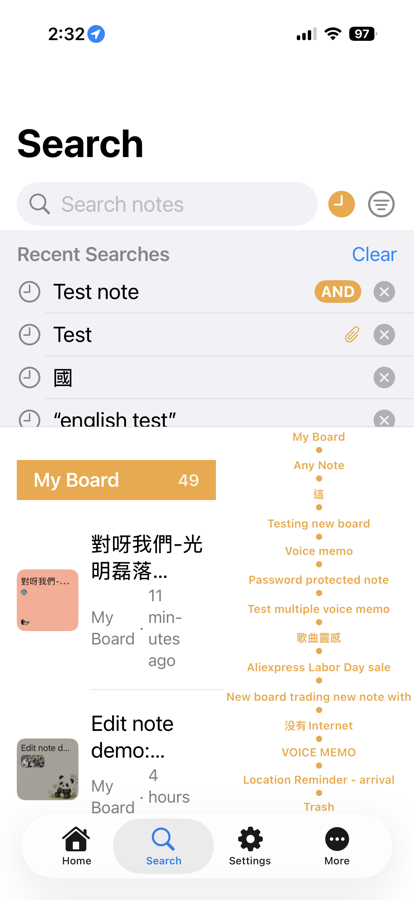
Tap Search to find any note instantly by its content or its board’s name — matches are highlighted in yellow. Use the filter icon to narrow results by board or tag alone. Wrap a phrase in "quotes" to match it exactly, or type several words and use the AND/OR switch above the search bar to require all of them or any one. The Sort button orders results by Recent Activity (most recently edited first) or A–Z — boards in the results follow the same order, and the same choice applies in the Boards list. The line under the search bar shows how many notes match.
點擊「搜尋」即可依內容或看板名稱即時找到任何便條,符合的文字會以黃色標示。使用篩選圖示可單獨依看板或標籤縮小搜尋範圍。將詞組加上「引號」可進行完整比對,或輸入多個字詞並使用搜尋欄上方的 AND/OR 開關,決定要符合全部字詞還是任一字詞即可。「排序」按鈕可依「最近活動」(最近編輯的在前)或 A–Z 排列結果——結果中的看板也會依同樣順序排列,看板清單也套用相同的選擇。搜尋欄下方的一行文字會顯示符合的便條數量。
小提示:點按搜尋欄即可看到「最近搜尋」——保存您最近 100 次的搜尋(連同篩選條件),一鍵即可重新使用。輸入文字時清單會保持顯示;按下 Return 或選擇一則過去的搜尋後會自動收起,也可隨時點按「關閉」。每則搜尋都有各自的刪除按鈕。
小提示:點選篩選圖示 →「鬧鐘」,搜尋頁就會變成您的鬧鐘清單——所有設有鬧鐘的便條依最近響鈴時間排序,並顯示各自下一次響鈴的時間(若有更多鬧鐘會標示「另有 2 個」)。每則便條也會顯示它有幾個鬧鐘、占用 iOS 64 個鬧鐘名額中的幾個(例如「2 個鬧鐘 · 3 個名額」),搜尋欄下方則會加總所列便條的鬧鐘與名額,再顯示整體已用多少,例如「3 則便條 · 3 個鬧鐘 · 7 個名額(已用 49/64)」,並會隨每次搜尋更新。垃圾桶中便條的鬧鐘已關閉,因此不占用名額。
小提示:搜尋預設不包含垃圾桶中的便條(以及已刪除看板中的便條),除非您點選篩選圖示 →「包含垃圾桶」。只要有任何篩選條件(包括「包含垃圾桶」)開啟,篩選圖示就會亮起。
✏️ Rich Text & Lists · 豐富文字與清單
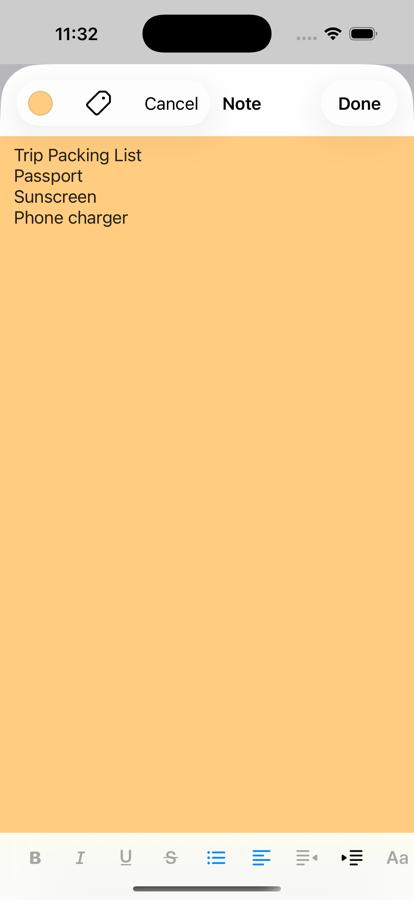
Every note supports bold, italic, underline, strikethrough, text color, and highlight. Tap the list-style icon for bulleted, dashed, numbered, or checklist formatting — tap a checkbox directly on the sticky note (no need to open it) to check items off.
每張便條都支援粗體、斜體、底線、刪除線、文字顏色與螢光標記。點擊清單樣式圖示可切換項目符號、破折號、編號或核取清單——直接在便條上點擊核取方塊(不需開啟便條)即可完成勾選。
Made a mistake? The ↶ ↷ buttons at the left of the formatting toolbar undo and redo your last change — typing, formatting, lists, links, photos, references, pasted text, checkbox taps, and image resizing. On an iPad keyboard use ⌘Z and ⇧⌘Z; on iPhone you can also shake to undo.
手滑了嗎?格式工具列最左側的 ↶ ↷ 按鈕可復原或重做上一步變更——包含輸入、格式設定、清單、連結、照片、參照、貼上的文字、核取方塊勾選與圖片大小調整。iPad 鍵盤可使用 ⌘Z 與 ⇧⌘Z;iPhone 也可搖動裝置來復原。
Pasting text copied from a webpage keeps its fonts, colors, and links. Pictures in the copied content are left out, and tables flatten into plain lines — both on purpose, to keep notes tidy.
從網頁複製文字後貼上,會保留原本的字型、顏色與連結。複製內容中的圖片不會一併貼上,表格則會轉為一行一行的純文字——兩者皆為刻意設計,讓便條保持簡潔。
Links: tap the link button in the toolbar to add one. Turn on “Show as Preview” to insert it as a card with the page’s title and thumbnail instead of plain text (the card follows your Left/Center/Right alignment, and tapping it opens the link). With the cursor inside a link, tapping the same button edits it — or right-click a link and choose Edit Link.
連結:點擊工具列上的連結按鈕即可新增。開啟「顯示為預覽」,就會以含有網頁標題與縮圖的卡片取代純文字(卡片會依您設定的靠左/置中/靠右對齊顯示,點按卡片即可開啟連結)。游標位於連結內時,再點同一個按鈕即可編輯——也可以在連結上按右鍵並選擇「編輯連結」。
Photos placed inside a note’s text can be resized: tap the photo, then drag the corner handle. Double-tap a photo to view it full size.
放在便條文字中的照片可以調整大小:點按照片後拖曳角落控點即可。雙擊照片可全尺寸檢視。
🖊️ Drawing · 繪圖
Tap the pencil icon in a note's formatting toolbar to sketch freehand with your finger or Apple Pencil, using the same pen, marker, eraser, and lasso tools as Notes. Undo, Redo, and Clear are right there in the toolbar too. Tap Insert to drop your drawing right into the note's content.
點擊便條格式工具列上的畫筆圖示,即可用手指或 Apple Pencil 自由繪製,並提供與「備忘錄」相同的畫筆、螢光筆、橡皮擦與套索工具。工具列上也有「復原」「重做」與「清除」。點擊「插入」即可將繪圖直接加入便條內容中。
Need something straighter? Use the Shape Tool to drag out a clean Line, Rectangle, Circle, or Arrow, alongside your freehand strokes. (Drawing is available on iPhone and iPad.)
需要更工整的線條?使用「形狀工具」即可拖曳出整齊的直線、矩形、圓形或箭頭,並可與手繪筆跡並用。(繪圖功能適用於 iPhone 與 iPad。)

🎨 Colors & Backgrounds · 顏色與背景
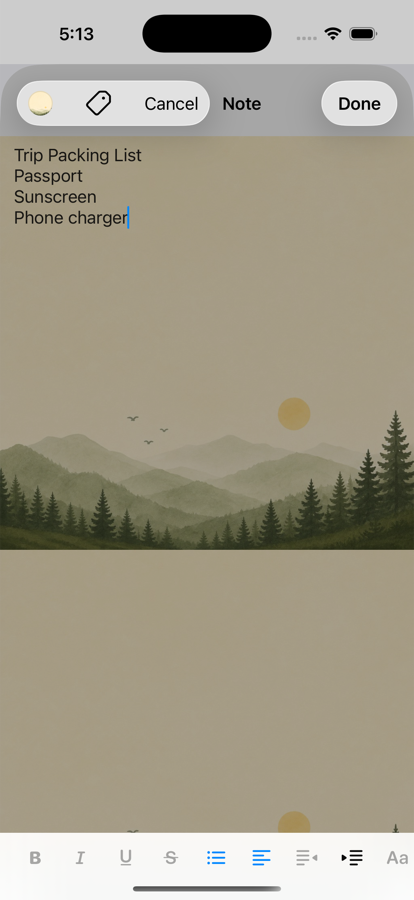
Tap a note's color button for a solid color, or choose a photo from your library, take one with the camera, or pick from Tackboard's built-in illustration gallery ("Choose Background"). In Settings, adjust Photo Opacity and Dim Amount to control how much a background shows behind your text.
點擊便條的顏色按鈕可選擇純色背景,也能從相簿選取照片、直接拍照,或從 Tackboard 內建的插圖庫(「選擇背景」)中挑選。在設定中可調整「照片不透明度」與「加深程度」,控制背景圖片在文字後方顯示的程度。
New notes avoid repeating the previous color. In Settings → New Notes, set Random Look to Colors and Backgrounds to mix in the built-in illustrations too. The gallery has 35 illustrations, and each keeps its subject anchored in the bottom corner as you resize the note. On Mac, the Color button opens the system color panel.
新便條不會重複上一個顏色。在「設定」→「新便條」中將「隨機外觀」設為「顏色與背景」,即可同時混入內建插圖。插圖庫共有 35 款,調整便條大小時,每款的主題圖案都會固定在底部角落。在 Mac 上,「顏色」按鈕會開啟系統色彩面板。
⏰ Alarms · 鬧鐘提醒
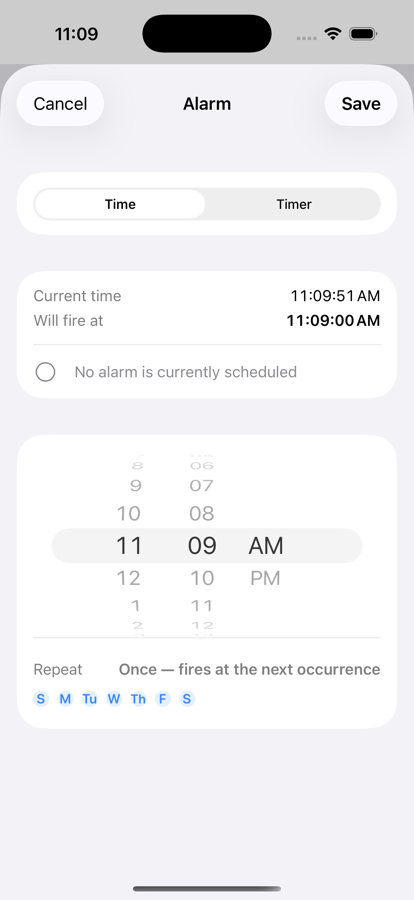
Set a one-time or repeating alarm on any note to get a timely reminder — perfect for turning a sticky note into a to-do with a deadline.
為任何便條設定單次或重複鬧鐘,即可獲得即時提醒——非常適合將便條變成附帶截止時間的待辦事項。
Need an alarm for one specific day — say a live event next Monday morning? Choose the Date tab, pick the date and time, and set “Remind Me” to get an early heads-up (5, 10, 15, 30 or 45 minutes, 1 or 2 hours, or 1 day before) — similar to Calendar. If the reminder time would already be in the past, Tackboard warns you before saving. The “Next alarm” preview updates live as you change the time or repeat days.
想在某個特定日期設定鬧鐘——例如下週一早上的直播活動?選擇「日期」分頁,挑選日期與時間,再用「提醒我」設定提前通知(提前 5、10、15、30 或 45 分鐘、1 或 2 小時,或 1 天)——功能類似「行事曆」。若提醒時間已經過去,Tackboard 會在儲存前提醒您。「下次鬧鐘」預覽會在您調整時間或重複日期時即時更新。
Repeating on a date: on the Date tab, set Repeat to Weekly, Monthly, or Yearly. For Weekly, tap the weekday buttons to pick several days (Mon, Wed, Fri…). A repeating alarm can also start later — pick a date in the future, and the first alarm fires on the first matching day on or after it (for Mon/Wed/Fri started on a Tuesday, that’s Wednesday). The alarm chip shows the next date it will fire.
在指定日期重複:在「日期」分頁將「重複」設為每週、每月或每年。選擇每週時,可點按星期按鈕選取多天(週一、週三、週五…)。重複鬧鐘也可以從未來才開始——選擇未來的日期,第一次鬧鐘會在該日期當天或之後第一個符合的日子響起(例如從週二開始、設為週一/三/五,第一次就是週三)。鬧鐘標籤會顯示下一次的響鈴日期。
小提示:對於從未來才開始的重複鬧鐘,Tackboard 會先排定最初的幾次鬧鐘,並在開始日期之後您下次開啟 Tackboard 時改為正常重複——所以請偶爾開啟 App。
More than one alarm: open a note’s “≡” menu → Alarm to see all of its alarms. Tap Add Alarm to add another — a note can have up to 5 (the extra ones are Time or Date alarms). Tap an alarm to change it, or swipe it to delete it. Each alarm can also have its own chip inside the note (see Inline References).
多個鬧鐘:開啟便條的「≡」選單 →「鬧鐘」即可看到它的所有鬧鐘。點按「新增鬧鐘」可再加一個——每則便條最多可有 5 個(額外的鬧鐘可設為時間或日期鬧鐘)。點按鬧鐘可修改,向左滑動則可刪除。每個鬧鐘也可以在便條內擁有各自的標籤(請見「行內參照」)。
小提示:一則便條可以設定位置提醒或時間鬧鐘,兩者不能並存——新增其中一種會關閉另一種(Tackboard 會先提醒您)。
小提示:iOS 限制每個 App 最多只能有 64 個待響鬧鐘。每週鬧鐘每選一個星期幾就占用一個名額,從未來才開始的鬧鐘在開始前也會多占用幾個。若鬧鐘將超出上限,Tackboard 會在儲存前提醒您;複製或還原需要更多名額的便條時也會提醒。在「搜尋」→ 鬧鐘篩選即可看到您目前用了多少。
Timer: on the Timer tab, spin the Hours / Minutes / Seconds wheels like Apple’s Timer to be reminded after that long. Under a one-time alarm you can also switch on “Move note to Trash after it fires” — the note is moved to Trash (and can be restored) the next time Tackboard runs after its alarms have finished. Repeating alarms and location reminders don’t offer this option. Tapping an alarm notification takes you straight to its note, even when the app was closed.
計時器:在「計時器」分頁中,像 Apple「計時器」一樣轉動時、分、秒滾輪,即可在那段時間後收到提醒。單次鬧鐘還可開啟「響鈴後將便條移至垃圾桶」——在鬧鐘全部響完後,下次開啟 Tackboard 時,該便條會移到垃圾桶(可還原)。重複鬧鐘與位置提醒沒有此選項。點按鬧鐘通知即可直接前往該便條,即使 App 先前已關閉也一樣。
🗓️ Calendar · 日曆
Open More → Calendar to see your alarms on a month calendar. A dot marks every day that has an alarm (a number if there are more than three); tap a day to list its alarms in time order, then tap one to open its note. Repeating alarms appear on every day they fire, and alarms on notes in the Trash are left out.
開啟「更多」→「日曆」,即可在月曆上查看你的鬧鐘。有鬧鐘的日子會有圓點(超過三個時會顯示數字);點按某一天即可依時間列出當天的鬧鐘,再點按其中一個即可開啟該便條。重複鬧鐘會出現在它響起的每一天,垃圾桶中便條的鬧鐘則不會顯示。
小提示——加入日曆(iPhone 與 iPad):在鬧鐘編輯畫面中,點按「儲存」前先開啟「加入日曆」。Apple 的日曆畫面會開啟,並已填入便條文字與鬧鐘時間。選擇一個日曆(例如你的 Google 或 Yahoo 日曆),再點按「加入」。該事件是一份副本:之後更改或刪除鬧鐘,不會影響它。
小提示——想收到電子郵件提醒?將鬧鐘加入 Google 日曆,再到 Google 日曆 → 設定 → 你的日曆 → 活動通知,新增一則「電子郵件」通知(例如提前 5 分鐘)。Tackboard 不會為事件加上自己的提醒,因此會套用 Google 的預設通知(包括電子郵件)。
小提示:可在月曆與「未來 7 天」清單之間切換。「更多」選單中日曆旁的數字代表今天還未響的鬧鐘數量。
📍 Location Reminders · 位置提醒
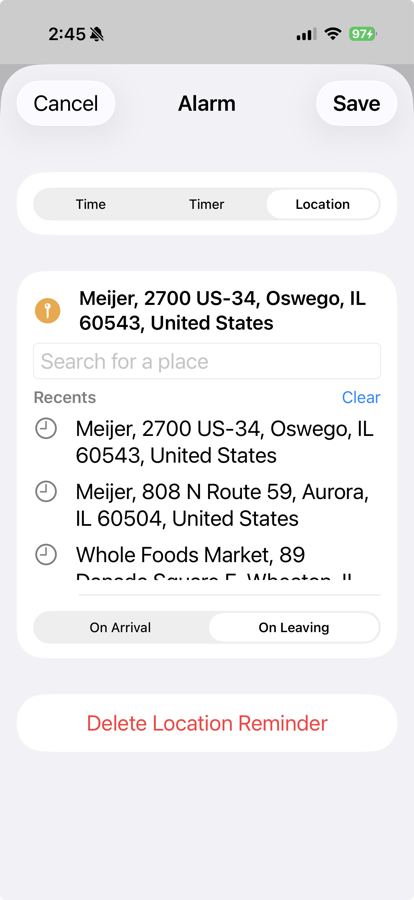
Instead of a time-based alarm, set a location reminder — search for a place, choose On Arrival or On Leaving, and Tackboard notifies you the moment you cross that spot. A note can have at most one active reminder at a time — setting a location reminder turns off that note's time alarm, and vice versa. Recent and previously-picked places are saved for quick reuse next time.
除了以時間為基礎的鬧鐘,也可以改為設定位置提醒——搜尋一個地點,選擇「抵達時」或「離開時」,只要進出該範圍,Tackboard 就會立即通知您。每則便條同一時間最多只能啟用一項提醒——設定位置提醒會關閉該便條的時間鬧鐘,反之亦然。最近與先前選取過的地點會被保存,方便下次快速重複使用。
Tap the star next to any place to save it to your Favorites for one-tap reminders later — Favorites sync across your devices through iCloud. Tap the place’s menu to open it in Apple Maps or Google Maps.
點按任何地點旁的星號即可加入「收藏」,日後一鍵就能設定提醒——收藏會透過 iCloud 在您的各裝置間同步。也可以從地點的選單直接在 Apple 地圖或 Google 地圖中開啟。
When iOS periodically asks whether to keep allowing background location, it's tempting to tap "Only While Using" to save battery — but that will silently stop location reminders from firing unless Tackboard happens to already be open at the exact moment you arrive or leave, defeating the whole point of the feature. Choose "Always Allow" to keep them working in the background. No need to worry about battery either way: this uses Apple's own low-power geofencing, which only wakes briefly when you actually cross the boundary — not continuous GPS tracking.
當 iOS 定期詢問是否要繼續允許背景取用位置時,很容易想選擇「僅在使用期間」以節省電量——但這麼做會讓位置提醒在背景中悄悄失效,除非您在抵達或離開的那一刻剛好已經打開 Tackboard,如此便失去了這項功能原本的意義。請選擇「永遠允許」,才能讓位置提醒持續在背景正常運作。也不必擔心耗電:此功能採用 Apple 本身低耗電的地理圍欄技術,只有在您實際跨越範圍時才會短暫喚醒,並非持續進行 GPS 追蹤。
🫳 Drag & Drop Into Tackboard · 拖放到 Tackboard
Drag text, a selection from a web page, a link, a picture, or a file from another app and drop it on the board: dropped on empty canvas it becomes a new note; dropped on an existing note, Tackboard asks whether to Add it to the note or Replace its content. The note you dropped on is outlined while you hover, and the board zooms to show where the result landed.
將其他 App 的文字、網頁選取內容、連結、圖片或檔案拖曳到看板上:放在空白畫布上會成為新便條;放在現有便條上時,Tackboard 會詢問要「加入」到便條還是「取代」其內容。拖曳經過時,目標便條會顯示外框,放開後看板會縮放到結果所在的位置。
🎬 Watch it work · 觀看演示
English
中文
小提示:拖放從網頁複製的文字時,Tackboard 會保留字型、顏色與連結,但會移除純白背景,讓文字在便條顏色上看起來更自然。鎖定的便條無法接受拖放。
📲 Share into Tackboard · 分享到 Tackboard
Turn something you see in another app into a note: in Photos, Safari, Maps, Notes, Voice Memos, Files and more, tap Share and choose Tackboard. Pictures, links, selected text, whole notes, voice recordings and files (PDFs, documents) all work — add a few words of your own, choose the board (or type a name in New Board to create one), then tap Save. The new note is waiting on its board the next time you open Tackboard. (iPhone and iPad.)
把您在其他 App 看到的內容變成便條:在「照片」、Safari、「地圖」、「備忘錄」、「語音備忘錄」、「檔案」等 App 中點按「分享」,再選擇 Tackboard。圖片、連結、選取的文字、整份備忘錄、語音錄音與檔案(PDF、文件)都可以——加上幾個自己的字,選擇看板(或在「新增看板」中輸入名稱來建立一個),再點按「儲存」。下次開啟 Tackboard 時,新便條就會出現在該看板上。(適用於 iPhone 與 iPad。)
小提示:如果分享選單的 App 列中沒有 Tackboard,請捲動到最後,點按「更多」,再開啟 Tackboard。
小提示:有些 App(例如「備忘錄」)會同時提供便條的圖片與文字。除非您開啟「包含圖片」,否則 Tackboard 只會保留文字。分享的語音錄音會成為便條上的語音備忘,並在便條內放入一個標籤。
小提示:分享網頁連結時,可以編輯它的標題,並開啟「顯示為預覽」來產生含圖片與標題的卡片——與編輯器中「連結」按鈕的選項相同。指向其他 App 的連結(例如 handybible:// 或 comgooglemaps://)也可以使用(不含預覽)。
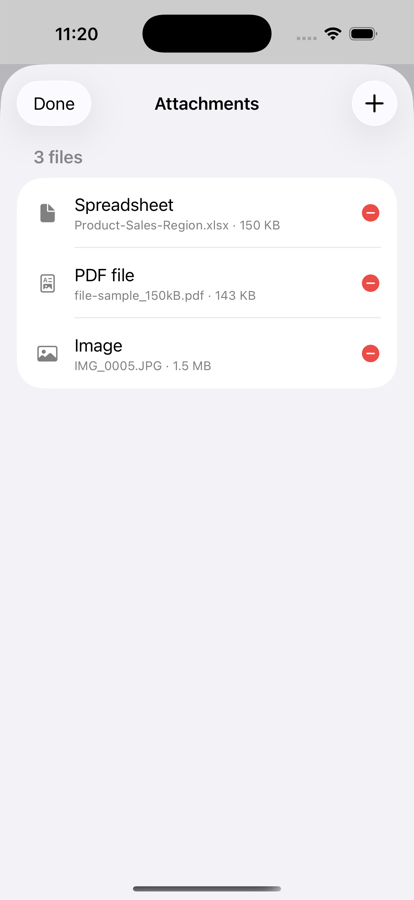
小提示:分享的檔案會成為便條上的附件,並在便條內放入一個標籤——每個檔案最大 25 MB,每次分享最多 5 個。雙擊標籤即可開啟。
小提示:在分享選單中選擇「加入便條」,即可將要分享的內容附加到現有便條的結尾,而不是建立新便條。鎖定的便條不會出現在選項中。
📎 Attachments & Voice Memos · 附件與語音備忘
Attach photos, documents, and other files to a note for extra context, or record one or more voice memos directly on a note.
為便條附加照片、文件及其他檔案以補充更多資訊,也可以直接在便條上錄製一段或多段語音備忘。
Recorded a few short clips? Tap Select in the voice memo list, tick the clips you want (the number badges show the order they’ll play in), and tap Merge. Tap ▶ on any row first to listen before you tick. Turn on “Delete originals after merging” if you don’t want to keep the separate clips (it’s off by default). The same Merge option is available when you’re picking a clip for an inline reference. Press Stop before Done when recording, so you can name the clip.
錄了幾段短錄音?在語音備忘清單中點擊「選取」,勾選要合併的錄音(數字徽章代表播放順序),再點擊「合併」。勾選前可先點按各列的 ▶ 試聽。若不想保留原始錄音,請開啟「合併後刪除原始錄音」(預設為關閉)。挑選行內參照要用的錄音時也可以使用同樣的合併功能。錄音時請先按「停止」再按「完成」,這樣才能替錄音命名。
🔗 Inline References · 行內參照
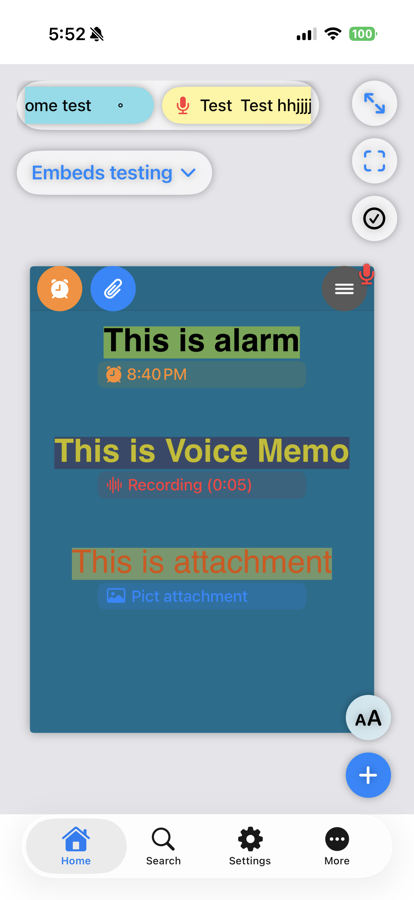
Insert a reference to a note's own alarm, voice memo, or attachment directly within its text — from the format toolbar's insert menu, whether you're pointing to something that's already there or creating it on the spot. A note with several alarms can show a chip for each one: choose Alarm in the insert menu and pick which alarm, or add a new one right there. Double-tap the reference on the canvas to open it instantly, no need to hunt through the note's own menu.
可將便條本身的鬧鐘、語音備忘或附件直接插入文字中作為參照——透過格式工具列的插入選單,無論是指向已存在的項目,或當下直接建立新項目皆可。有多個鬧鐘的便條可為每個鬧鐘各放一個標籤:在插入選單選擇「鬧鐘」並挑選是哪一個,或直接在那裡新增。在畫布上雙擊該參照即可立即開啟,不需再從便條選單中尋找。
Tap rules at a glance — on the canvas: double-tap a reference to open it, single-tap a link to open it, tap a checkbox to tick it, and double-tap anywhere else on the note to zoom in on it. While editing a note: single-tap a reference to change which alarm, voice memo, or attachment it points to (double-tapping works too), and press-and-hold one to drag it elsewhere in the text.
點按規則一覽——在畫布上:雙擊參照即可開啟、單擊連結即可開啟、點按核取方塊即可勾選、在便條其他位置雙擊則會放大該便條。編輯便條時:單擊參照可更改它所指向的鬧鐘、語音備忘或附件(雙擊同樣有效),按住參照則可將它拖曳到文字中的其他位置。
🔤 Text Recognition (OCR) · 文字辨識 (OCR)
Any photo you insert or attach to a note is automatically scanned for text — no button to tap, no separate step. It works across English, Traditional & Simplified Chinese, Japanese, and Korean, even multiple languages in the same note. That text becomes instantly searchable, and you can copy it out (or add it into the note) any time from the note's menu → Extracted Text.
只要在便條中插入或附加照片,系統就會自動辨識其中的文字——不需要點擊任何按鈕,也不用額外步驟。支援英文、繁體與簡體中文、日文及韓文,甚至同一則便條中可包含多種語言。辨識出的文字會立即可供搜尋,也可以隨時從便條選單中的「擷取的文字」複製,或加入便條內容。
📖 Read & Copy · 閱讀與拷貝
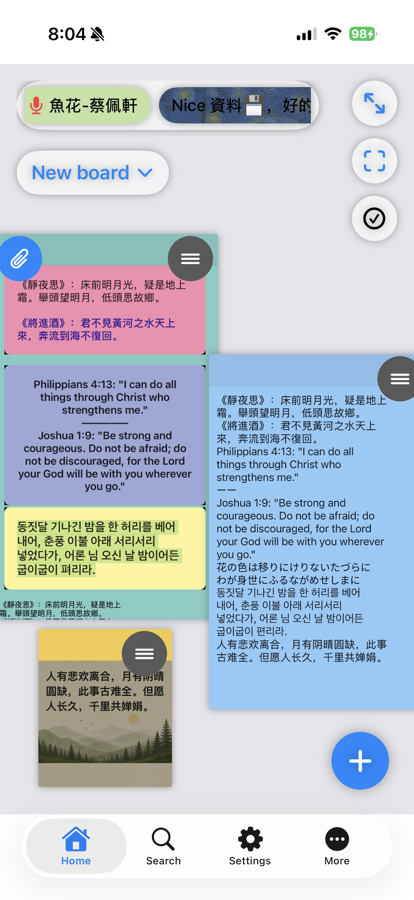
Want to copy part of a note without opening the editor? Tap a note’s ≡ menu → More → Read & Copy. The note opens in a clean reading view where you can press and hold to select any text and copy it, or tap Copy All Text.
想複製便條中的部分文字,但不想開啟編輯器?點按便條的 ≡ 選單 → 更多 → 閱讀與拷貝,便條會以簡潔的閱讀畫面開啟,長按即可選取任何文字並拷貝,也可點按「拷貝全部文字」。
小提示:鎖定的便條不會提供「閱讀與拷貝」,因此在您解鎖之前,內容會維持受保護。
🕐 History · 版本歷史
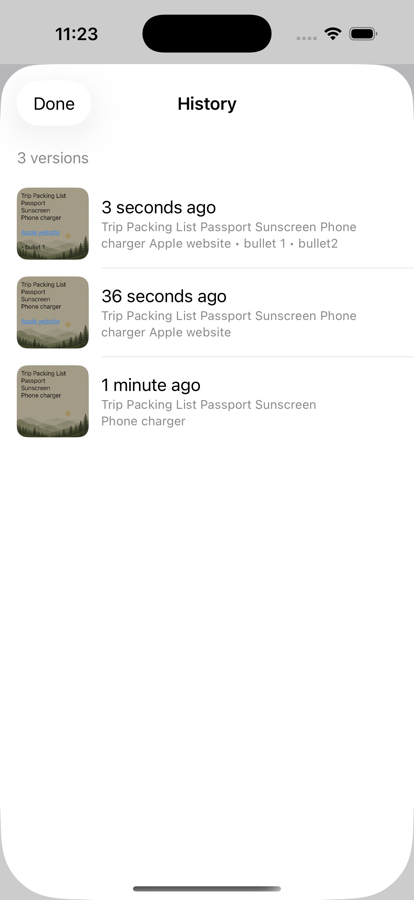
Every edit is automatically saved as a version. Open a note's History to look back at — and restore — any earlier version, any time.
每次編輯都會自動儲存為一個版本。開啟便條的「歷史紀錄」即可隨時回顧並還原先前的版本。
🔒 Lock Private Notes · 鎖定隱私便條
Protect a sensitive note with Face ID or your device passcode — its content stays hidden on the canvas until you unlock it.
使用 Face ID 或裝置密碼保護敏感便條——在解鎖前,內容會在畫布上保持隱藏。

☁️ Sync Across Devices · 跨裝置同步
Every note, board, tag, and setting syncs automatically via your iCloud account across iPhone, iPad, and Mac — no separate account or sign-up needed.
所有便條、看板、標籤及設定都會透過您的 iCloud 帳號自動同步至 iPhone、iPad 與 Mac——不需另外註冊帳號。
💎 Remove Ads · 移除廣告
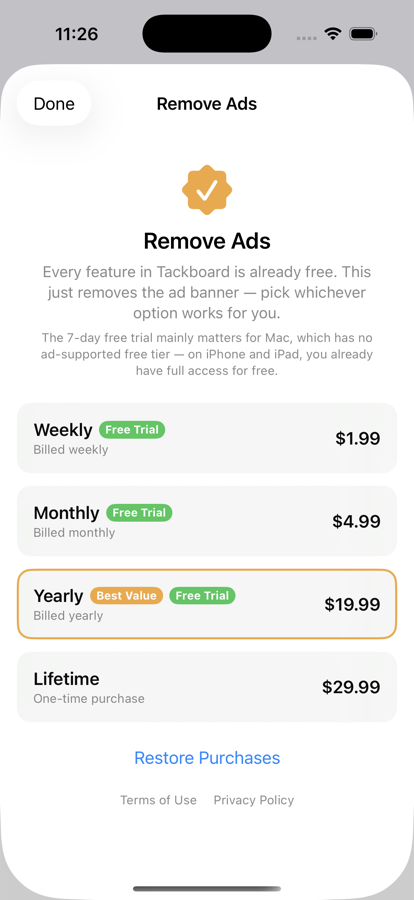
Tackboard is free to use on iPhone and iPad, with a small ad banner. Remove it with a Weekly, Monthly, or Yearly subscription (each with a free trial) or a one-time Lifetime purchase — every feature stays free either way, this only removes the ad. On Mac, one of these purchases is required, since there's no ad-supported option there. Either way, the purchase is tied to your Apple ID, so buying it on one device removes ads on all your devices — no need to buy it twice.
Tackboard 在 iPhone 與 iPad 上可免費使用,並附有小型廣告橫幅。可透過每週、每月或每年訂閱(皆附免費試用)或一次性終身購買方案移除廣告——無論是否購買,所有功能皆維持免費,此項購買僅移除廣告。在 Mac 上,由於沒有廣告免費版本,需要完成其中一項購買才能使用。無論從哪個裝置購買,由於購買與您的 Apple ID 綁定,所有裝置都會一併移除廣告——不需要重複購買。
💾 Backup & Restore · 備份與還原
Under More → Backup & Restore, choose Export Backup to save every note and board into one compact file, and Restore from Backup to bring it back later on any device — you’ll see how many notes and boards it holds before confirming, and can either replace what’s on the device or merge with it. Tip: if your backup lives in a cloud drive such as Google Drive, download it to the Files app first, then restore from there.
在「更多」→「備份與還原」中,選擇「匯出備份」即可將所有便條與看板儲存為單一精簡檔案;日後可在任何裝置上使用「從備份還原」——確認前會顯示其中包含的便條與看板數量,並可選擇取代裝置上的資料或與其合併。小提示:若備份檔存放在 Google Drive 等雲端硬碟,請先下載至「檔案」App,再從那裡還原。
📋 Duplicate to Board · 複製到其他看板
Open a note’s “≡” menu and choose Duplicate to Board… to copy it straight onto another board. A plain Duplicate makes a copy on the current board.
開啟便條的「≡」選單並選擇「複製到看板…」,即可將它直接複製到另一個看板。一般的「複製」則會在目前的看板上建立副本。
🗑️ Trash · 垃圾桶
Deleting a note or board doesn't erase it right away — it moves to Trash (More → Trash), fully searchable and filterable the same as the main Search screen. Tap a trashed note to preview its content before deciding. Restore brings it back exactly as it was — alarm, tags, everything intact. Delete Permanently and Empty Trash are separate, explicitly-confirmed destructive actions. Notes and Boards have their own tabs, each with search, sort, and totals. By default trashed items stay until you act on them; in Settings → Trash you can set Delete After to 7, 30 or 90 days, and Tackboard permanently deletes older items when it opens. Empty Trash asks you to confirm first. Alarms and location reminders on trashed notes — and on notes in a trashed board — are switched off until you restore them.
刪除便條或看板並不會立即消失——會先移至「垃圾桶」(更多 → 垃圾桶),並可像主要搜尋畫面一樣完整搜尋與篩選。點擊垃圾桶中的便條即可預覽內容再做決定。「還原」會將其完全恢復原狀——鬧鐘、標籤等資訊都會保留。「永久刪除」與「清空垃圾桶」都是各自獨立、需要明確確認的刪除動作。便條與看板各有獨立分頁,並提供搜尋、排序與總數。預設情況下,垃圾桶內容會一直保留,直到您親自處理;您也可以在「設定」→「垃圾桶」將「自動刪除時間」設為 7、30 或 90 天,Tackboard 開啟時會永久刪除較舊的項目。清空垃圾桶前會先請您確認。垃圾桶中便條(以及已移到垃圾桶的看板中的便條)的鬧鐘與位置提醒會先關閉,等您還原後才會恢復。
🖐️ Gestures & Canvas Controls · 手勢與畫布操作
Things you won't discover just by looking at the screen. 這些是光看畫面不容易發現的操作方式。
👆 Canvas Gestures · 畫布手勢
Drag empty canvas to pan around, or pinch it to zoom in/out. On a note: hold briefly then drag to move it (a quick drag instead scrolls its own text); use two fingers to resize it, width and height independently. Double-tap any note to zoom in and frame just that one — handy when several notes are clustered too small to tap accurately. Double-tap a picture inside a note instead to view it full-screen, with pinch-to-zoom and pan.
拖曳空白畫布可平移視角,雙指縮放畫布可放大縮小。在便條上:先按住片刻再拖曳即可移動便條(直接快速拖曳則是捲動便條內的文字);使用雙指拖曳可分別調整寬度與高度來改變大小。雙擊任一便條即可放大並置中顯示該便條——當多張便條擠在一起難以準確點擊時特別好用。若雙擊便條中的照片,則會以全螢幕檢視該照片,並支援雙指縮放與拖曳平移。
🎯 The 3 Canvas Buttons · 畫布右上角的三個按鈕
Three buttons float in the top-right corner of the canvas. The expand-arrows icon toggles Full View, hiding the tab bar for more canvas space. The viewfinder icon is Fit All Notes — zooms and pans so every note on the current board is framed at once. The checkmark icon turns Select Mode on and off.
畫布右上角有三個懸浮按鈕。展開箭頭圖示可切換「全螢幕檢視」,隱藏下方分頁列以獲得更多畫布空間。取景框圖示是「顯示全部便條」——自動縮放並平移,讓目前看板上的所有便條一次全部顯示在畫面中。打勾圖示則用來開啟或關閉「選取模式」。
🔠 Adjustable Text Size · 可調整文字大小
Tap the "Aa" button floating on the canvas to adjust text size across every note at once. Drag the slider to scrub in real time, or tap A+/A- for precise steps — anywhere from 25% up to 1000%, handy for accessibility or just easier reading from a distance.
點擊畫布上懸浮的「Aa」按鈕,即可一次調整所有便利貼的文字大小。拖曳滑桿可即時預覽效果,或點擊 A+/A- 進行精確調整——範圍從 25% 到 1000%,方便輔助閱讀,或在較遠距離查看時使用。

📌 The Pinned Notes Banner · 釘選便條橫幅
The auto-scrolling strip at the very top of the canvas shows every pinned note from any board as a colored chip — it scrolls continuously so nothing gets missed, no manual swiping needed. Pin or unpin a note from its "≡" menu. Tap a chip to jump straight to that note, switching boards automatically if needed. Long-press a chip for a quick preview without leaving the canvas. Turn the whole banner on/off, or adjust its scroll speed, in Settings → Banner.
畫布最上方會自動捲動的橫幅,會以彩色標籤顯示來自任何看板的所有釘選便條——持續自動捲動,不需手動滑動也不會錯過任何一則。可在便條的「≡」選單中釘選或取消釘選。點擊標籤即可直接跳至該便條,若在其他看板會自動切換過去。長按標籤則可在不離開畫布的情況下快速預覽內容。可在「設定」→「橫幅」中開關整個功能,或調整捲動速度。
☑️ Selecting Multiple Notes · 選取多張便條
In Select Mode, drag across empty canvas to draw a rectangle — every note it touches gets selected. Once 2 or more are selected, a dashed rectangle appears around them; drag that rectangle to move the whole group together, keeping their layout. Tap any note individually to toggle it in or out of the selection. The bottom bar offers Cancel, Invert, Select All/Deselect All, and Arrange (auto-arranges the selection into a tidy grid, enabled once 2+ notes are selected).
在選取模式下,於空白畫布上拖曳即可畫出一個矩形——凡是碰到的便條都會被選取。選取兩張以上便條後,會出現一個虛線矩形框住它們;拖曳這個矩形即可將整組便條一起移動,並保持彼此的相對位置。也可以個別點擊便條,將其加入或移出選取範圍。畫面下方的工具列提供「取消」「反選」「全選/取消全選」以及「排列」(將選取的便條自動整理成整齊的網格,需選取兩張以上才能使用)。
With notes selected, an extra bar above the bottom bar lets you Move them to another board, Duplicate them, change their Color (or Background), or send them to Trash in one step. To move a single note, use its “≡” menu → Move to Board.
選取便條後,底部工具列上方會多出一排按鈕,可一次將它們移到其他看板、複製、更改顏色(或背景),或移至垃圾桶。若只要移動單一便條,請使用其「≡」選單 →「移到看板」。

🎬 Demo Videos · 示範影片
Coming soon — we're working on adding these now that Tackboard is live on the App Store. · 即將推出——Tackboard 現已正式上架,示範影片將陸續加入。
Back to Tackboard · 回到 Tackboard →