Useful Tips
 External Keyboard Key Shortcuts
- Cmd + f — go to "Search"
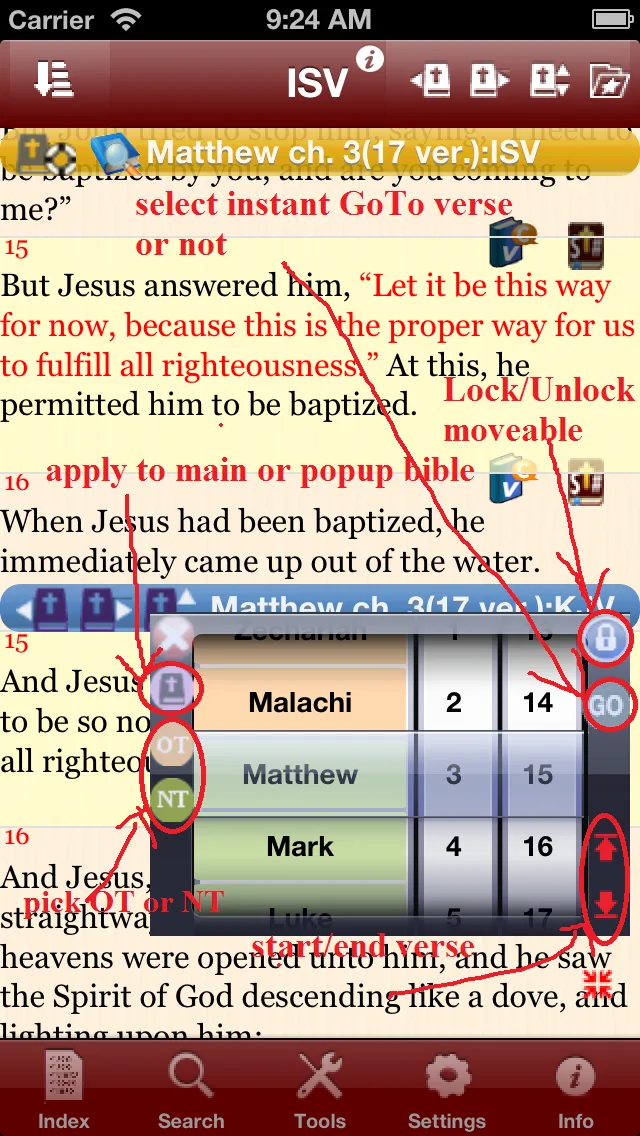
- Cmd + g — Show Bible Verse Picker
- Cmd + t — go to "Tools"
- Cmd + s — go to "Strong Number" for current verse
- Left / Right Arrow — Previous / Next chapter
- Up / Down Arrow — Select Previous / Next verse
- Cmd + Left / Right Arrow — Previous / Next Book
- Cmd + Up / Down Arrow — Go to Top or Bottom
- Cmd + b — Select primary Bible translation (top right corner, 2nd button from rightmost)
- Cmd + c — Go to "Copy & Share" (under Note editing: Cmd+c = Copy, Cmd+v = Paste)
- Cmd + p — go to "Compare Translations"
- Cmd + d — go to "Search Dictionary"
- Cmd + n — open / close "Note"
- Cmd + l — go to "My List"
- Cmd + i — go to "Index"
- Cmd + m — open / close "Commentary"
- Cmd + r — toggle "Full Screen" mode
- p — play / stop Bible text-to-speech
- From Strong Number or Compare Translations: Left/Right Arrow = Previous/Next verse | Cmd + Left/Right = Previous/Next chapter | Up/Down = Top/Bottom
Multi-touch Gestures
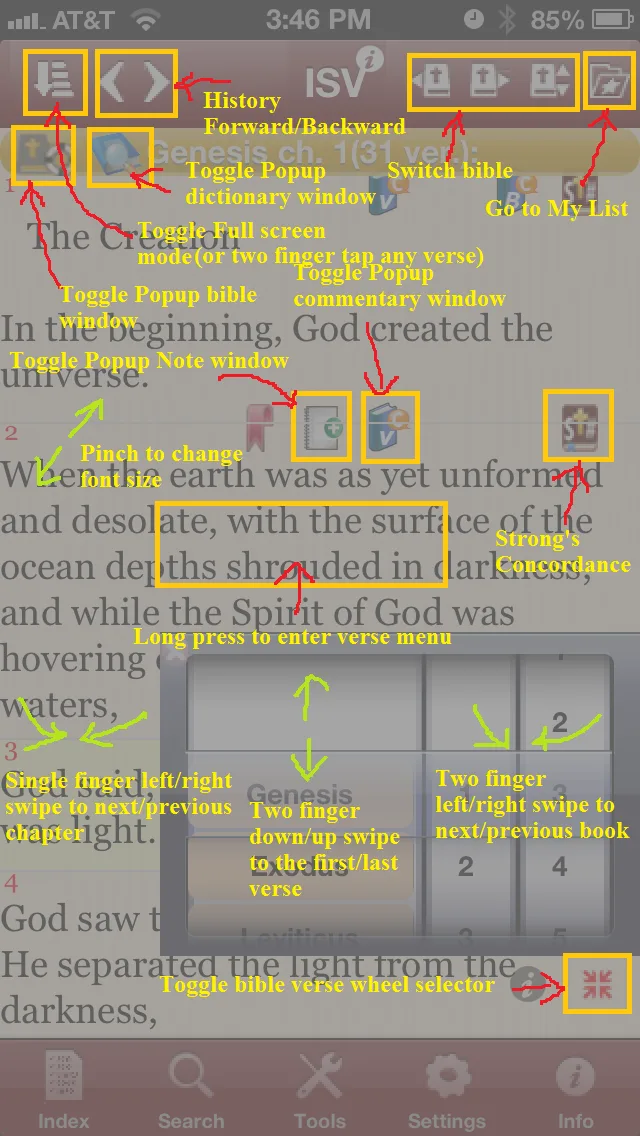
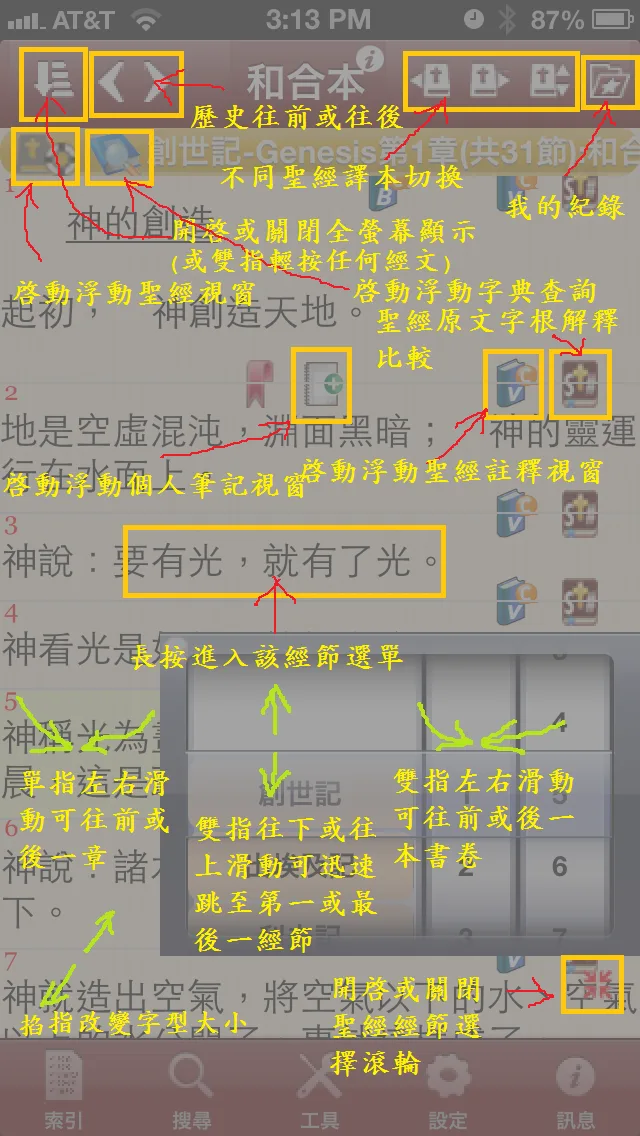
- Long press a Bible verse to enable the Bible verse menu
- Single finger swipe left or right on the main Bible window to advance to the next chapter or return to the previous chapter
- Two finger swipe left or right on the main Bible window to advance to the next book or return to the previous book
- "Two finger tap" anywhere on the screen, or "Shake" iPhone, to toggle on/off "Full Screen" Bible reading mode
- Double tap to bring up the Float Bible window, then long press or double tap the content to select Bible text and search Bible / Dictionary / Commentary
- Pinch the Bible window to change font size instantly
- After changing font type/size or displaying a second Bible, if text is truncated at the end of some verses, increase "Settings → Font Settings → Gap between Verses" to add more space
-
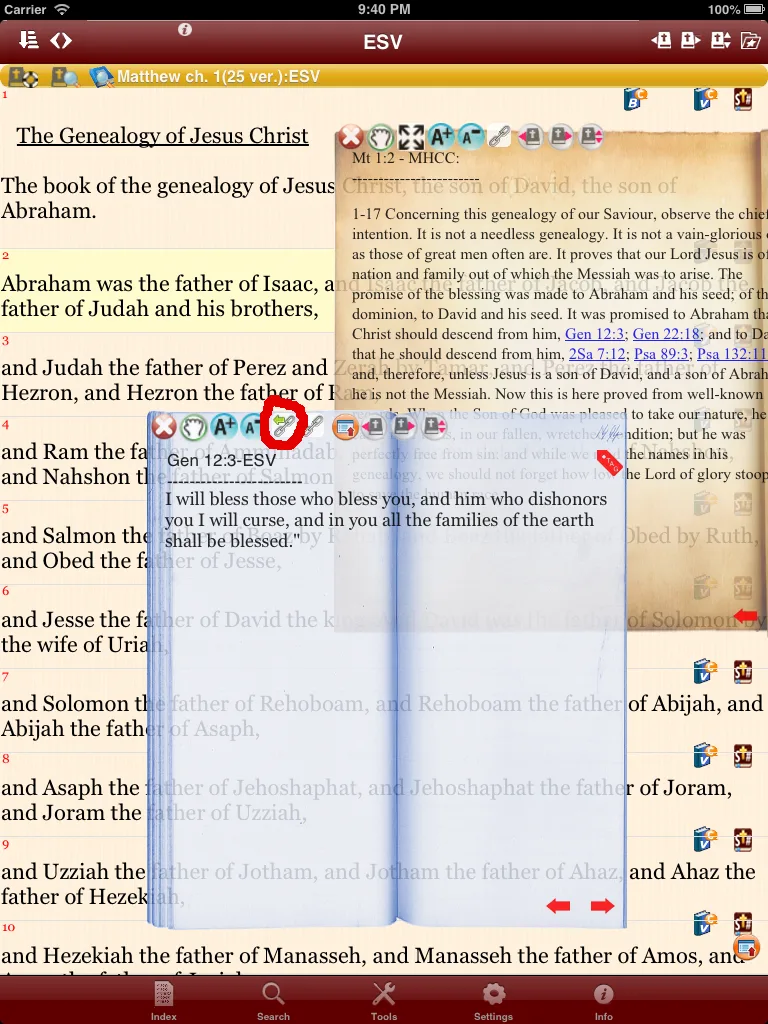
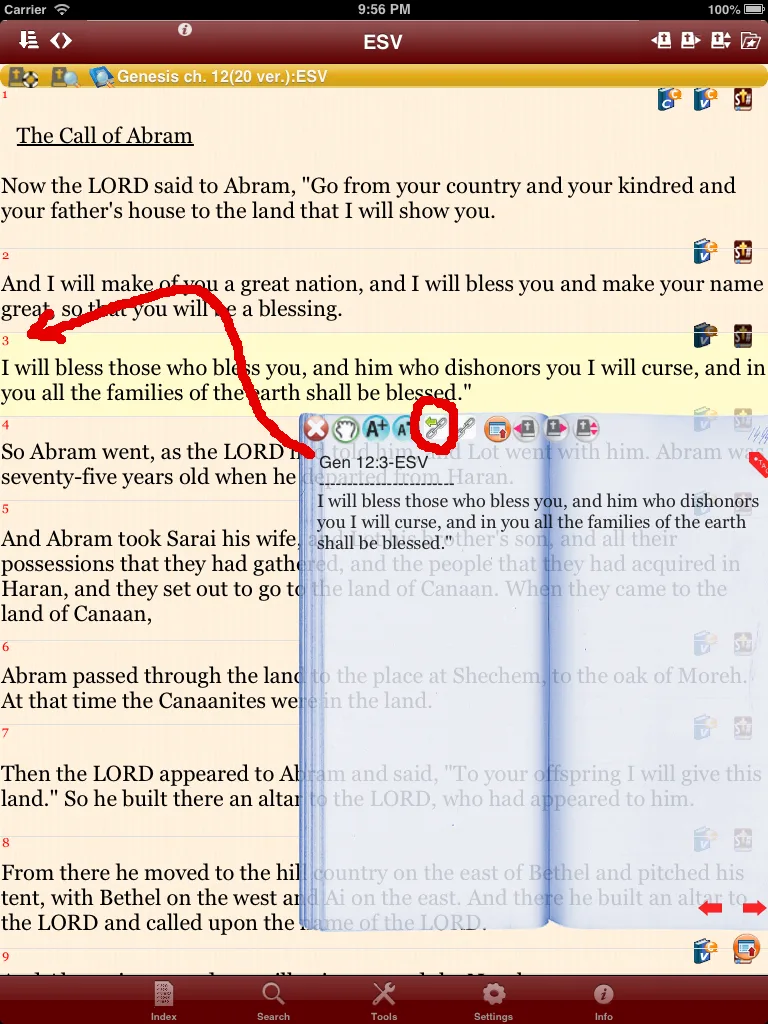
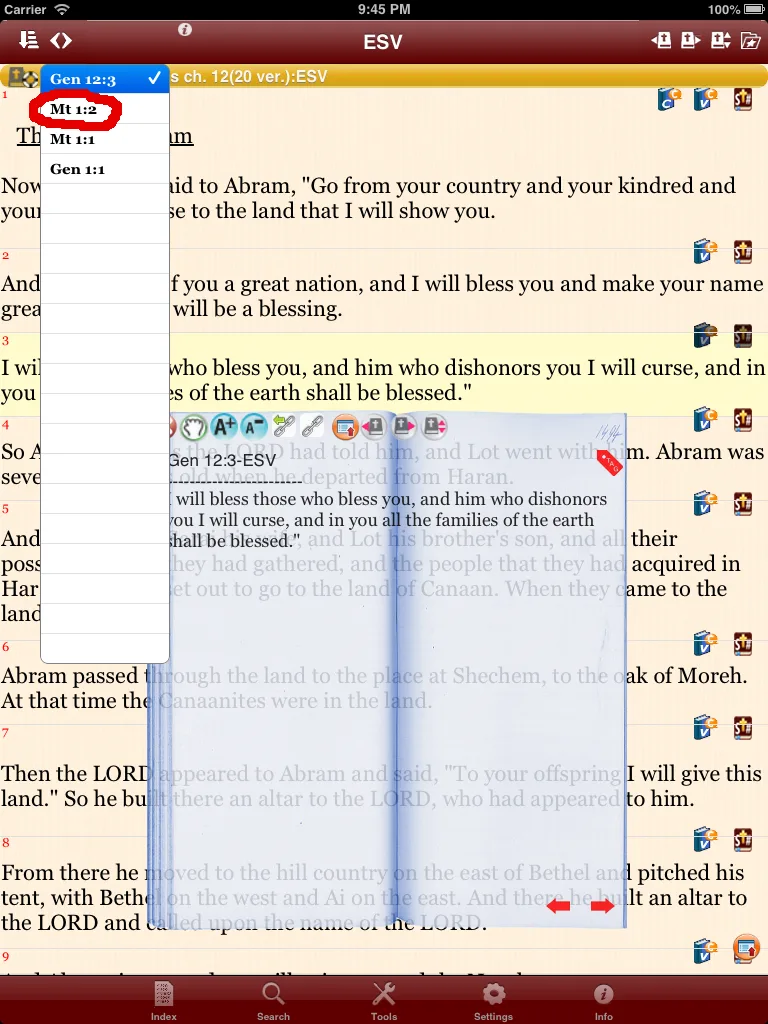
Use Popup verse "Link": 1. Click "Link" button → 2. Quick jump to the main Bible window for that verse → 3. Use History to jump back to the previous verse
有用的小竅門

外接鍵盤按鍵快捷鍵
- Cmd + f — go to「搜尋」
- Cmd + g — 彈出跳選經文的對話框
- Cmd + t — go to「工具」
- Cmd + s — go to「Strong Number」
- Left / Right Arrow — 去上一章或下一章
- Up / Down Arrow — 上一節或下一節
- Cmd + Left / Right Arrow — 去上一 Book 或下一 Book
- Cmd + Up / Down Arrow — go to Top or Bottom
- Cmd + b — 選擇主要聖經版本(右上角右數第二個按鈕)
- Cmd + c — 複製 & 分享畫面(在筆記編輯中:Cmd+c = 複製,Cmd+v = 貼上)
- Cmd + p — go to「經文合參」
- Cmd + d — go to「搜尋字典」
- Cmd + e — go to「搜尋英中中英字典」
- Cmd + n — 打開 / 關閉「筆記」
- Cmd + l — 打開「我的列表」
- Cmd + i — 打開「索引」
- Cmd + m — 打開 / 關閉「註解」
- Cmd + r — 全屏幕顯示切換
- p — 開啟或停止朗讀經文
- 從 Strong Number 或經文合參:Left/Right Arrow = 去上一節或下一節 | Cmd + Left/Right = 去上一章或下一章 | Up/Down = Go to Top/Bottom
多點觸控手勢
- 長按經文進入 該經節選單
- 一指向左滑動主經文視窗,前進至下一章;一指向右滑動主經文視窗,則返回至上一章
- 二指向左滑動主經文視窗,前進至下一本書;二指向右滑動主經文視窗,則返回至上一本書
- 兩指輕按畫面任何地方或「搖晃」iPhone,可啟動或關閉「全螢幕」讀經模式
- 雙擊經文可開啟浮動聖經視窗,長按或雙擊可選取字詞,字詞選取之後, 馬上跳出搜尋經文 / 字典 / 注釋的功能選擇
- 可兩指捏指主經文視窗即時改變文字大小
- 在改變字型大小或顯示第二欄聖經之後,有些經節的最後一行經文尾端遭截斷,這時可增加「設定 → 字型設定 → Gap between Verses」來增加顯示每節經文的空間
-
Popup verse「Link」用法:1. 點擊「Link」按鈕 → 2. 快速跳至主經文視窗該節 → 3. 使用歷史記錄跳回 Popup verse 之前的經節